
Manual for editors
You can access translate.ai.craft-education.nl to proofread/edit translated Moodle or Word documents if you have been granted access by CRAFT Education. Simply type in the email that was communicated with you and check your inbox for a magic link.
Navigating projects
After logging in, you will be prompted with the following screen. If no projects appear while it should, kindly contact us.
You will see projects, these represent a Word document or Moodle course that should be translated.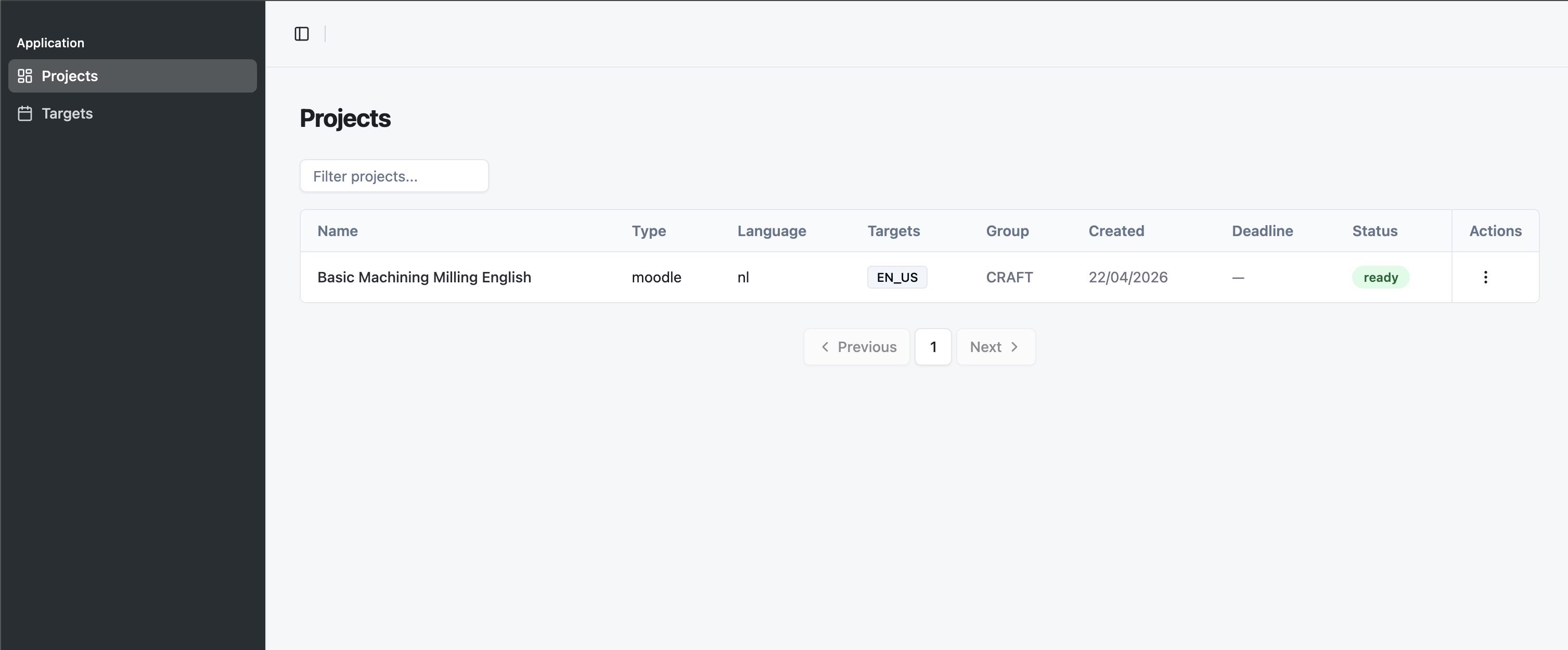
A different language from the original project language is referred to as target. A project could be a course in English and a target could be Italian, German or Croatian.
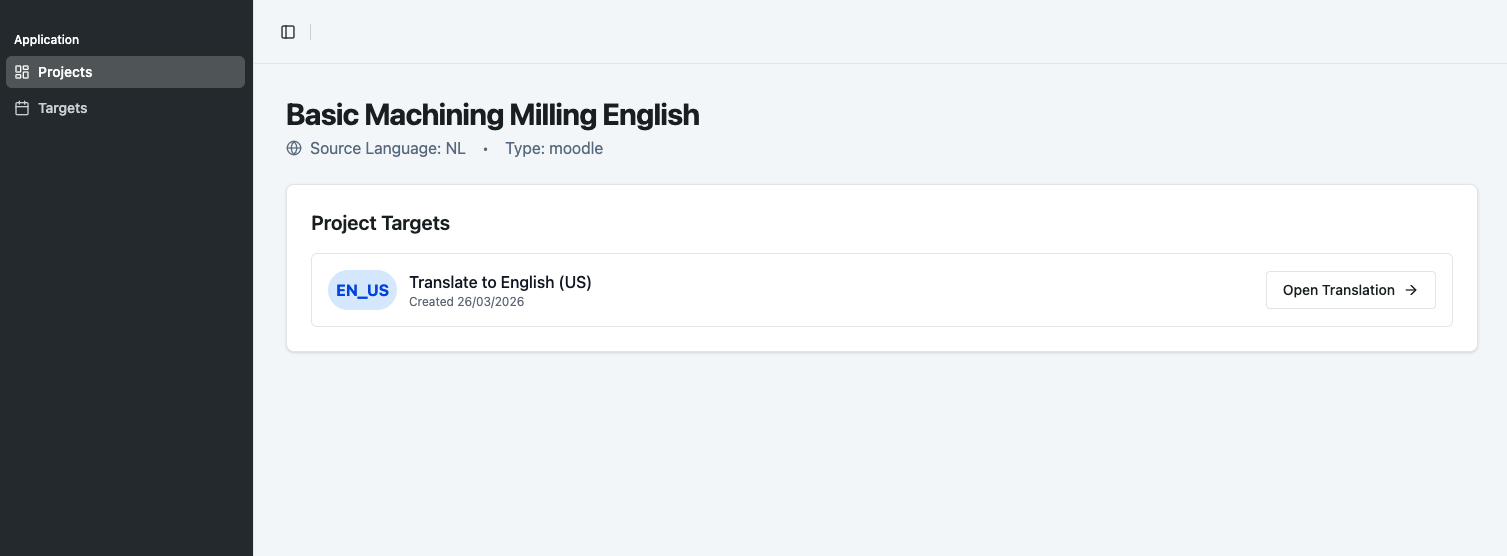
If you click on a project in the list you will be prompted with another screen containing the project's targets you can access.
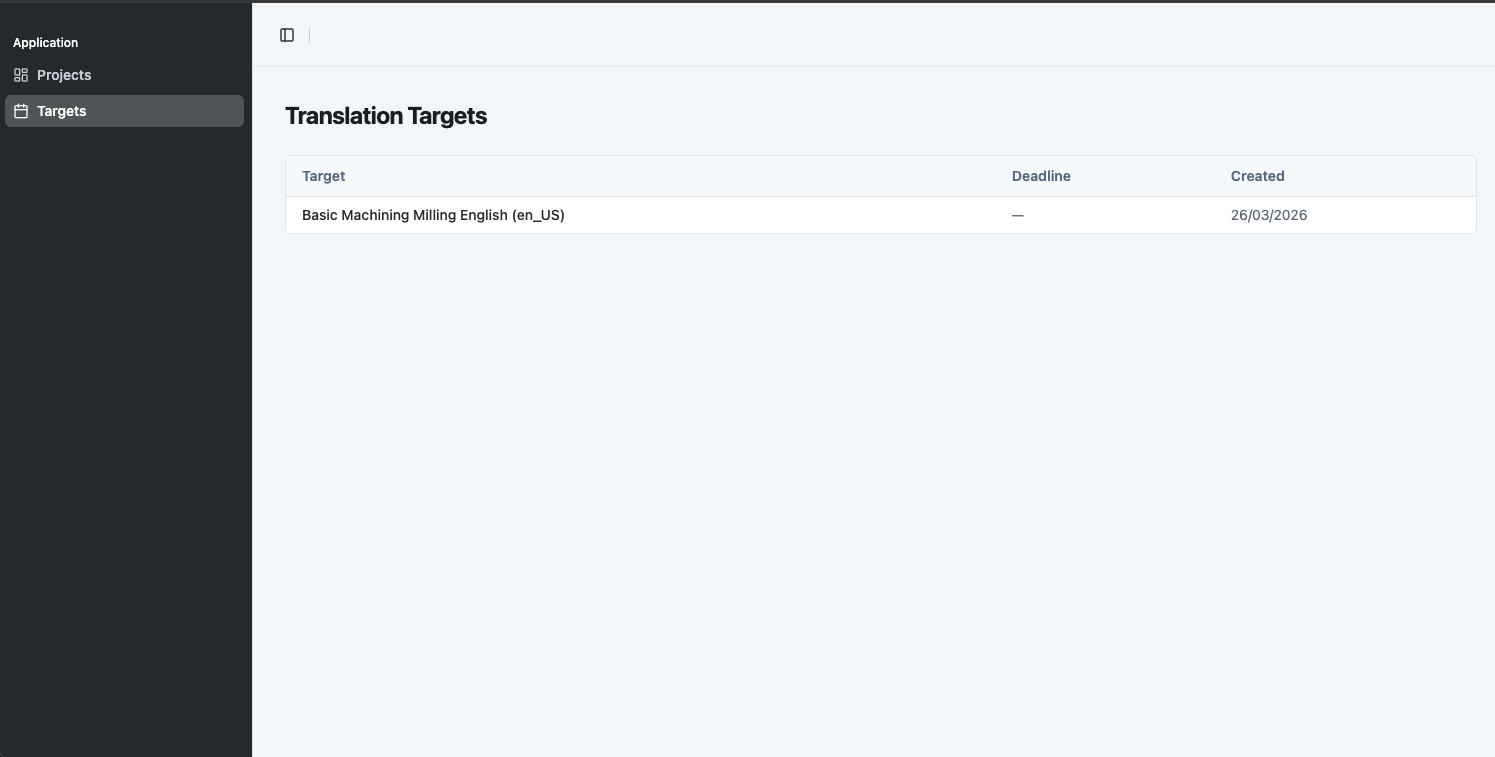
Alternatively, you can navigate to Targets in the menu and may click on any available target directly.
Editor interface
After you opened a target to proofread and/or edit, you will be prompted with the following screen.
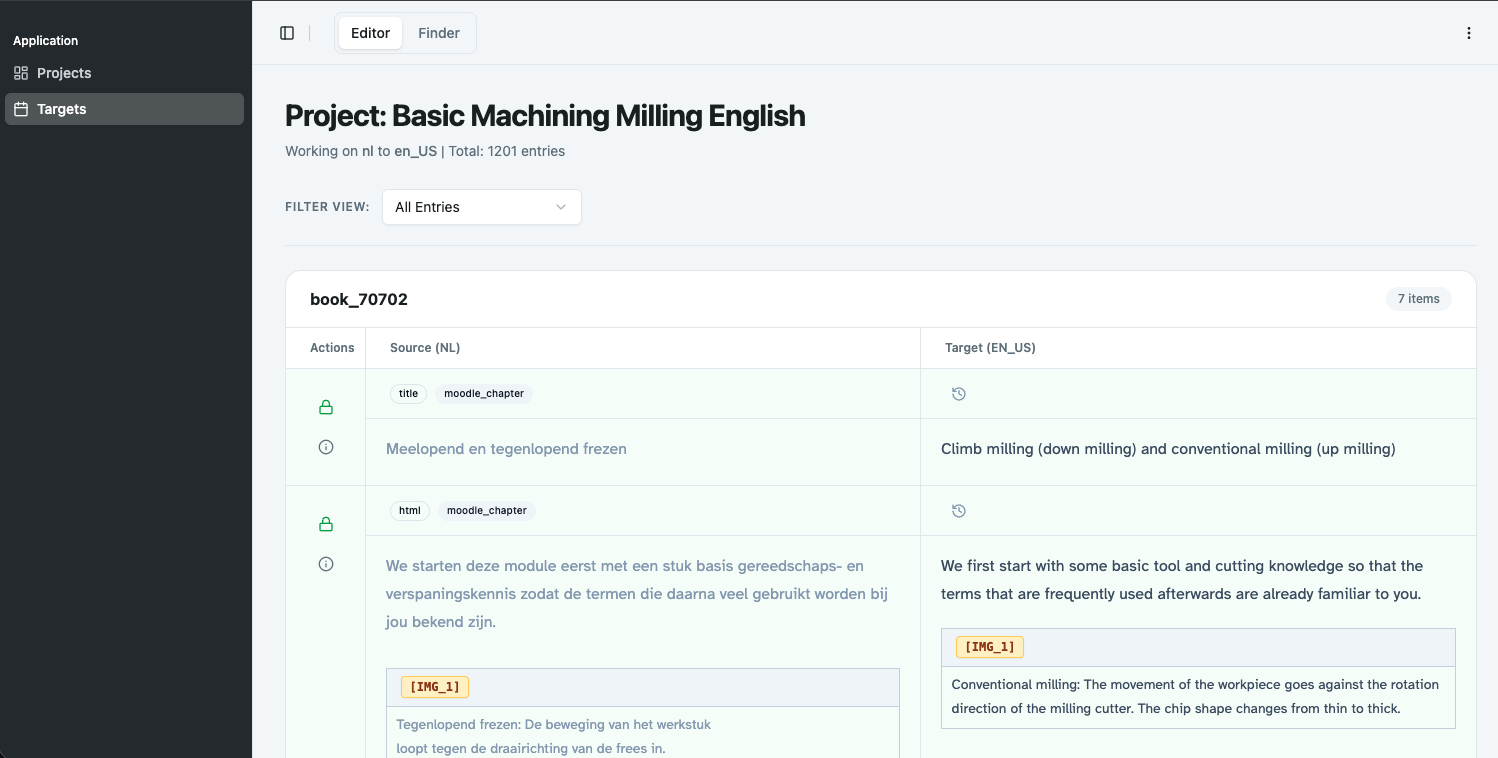
If you are translating Moodle e-learning content, the platform automatically groups books and quizzes together.
When clicking on an entry you can edit the translated content on the right. The content on the left is the source material and cannot be edited. You can select text to change the markup to bold, italic, sub- or superscript.
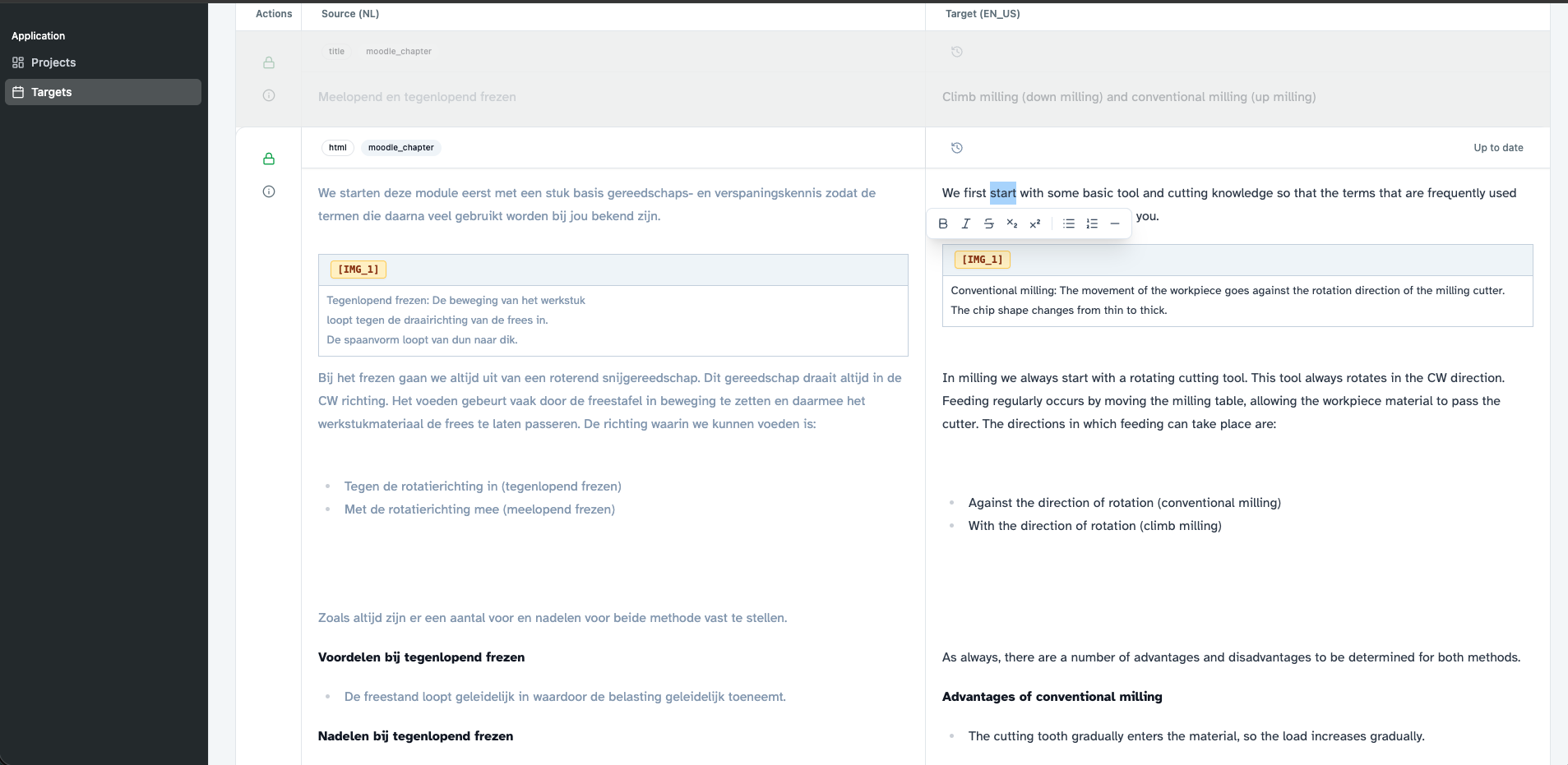
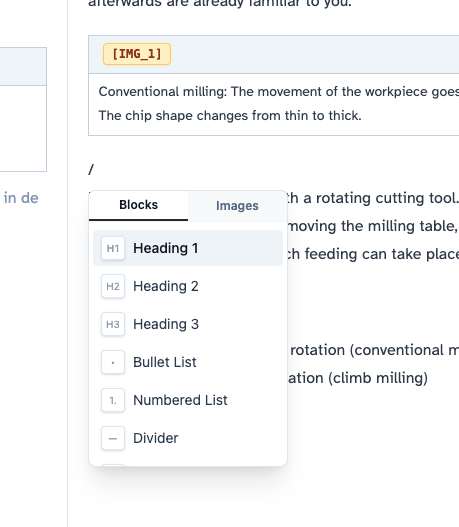
You can also type "/" to open a content menu with different elements to select from.
Entry locks
You may have noticed a green color and a green lock . This means another person has already edited the entry, but it does not guarentee they were finished with it at the moment. It simply means the most recent edit was made by a human.
When an entry does not have the green lock it means it's a machine translated translation. The lock currently prevents machine translations overwriting human translated work. In the future we may add more flags so you can indicate if a translation is 100% finished or needs review from someone else in case of doubt.
We recommend working top to bottom at the moment so no entries are skipped by accident until we add better flagging systems in the future.
Image tags
If you accidentally removed an image, you can restore it by clicking on the "images" tab after typing "/".
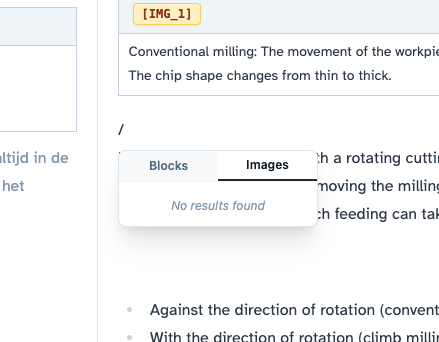
Alternatively, you can click on the image tag on the left to copy it, then paste it somewhere on the right.
Filtering entries
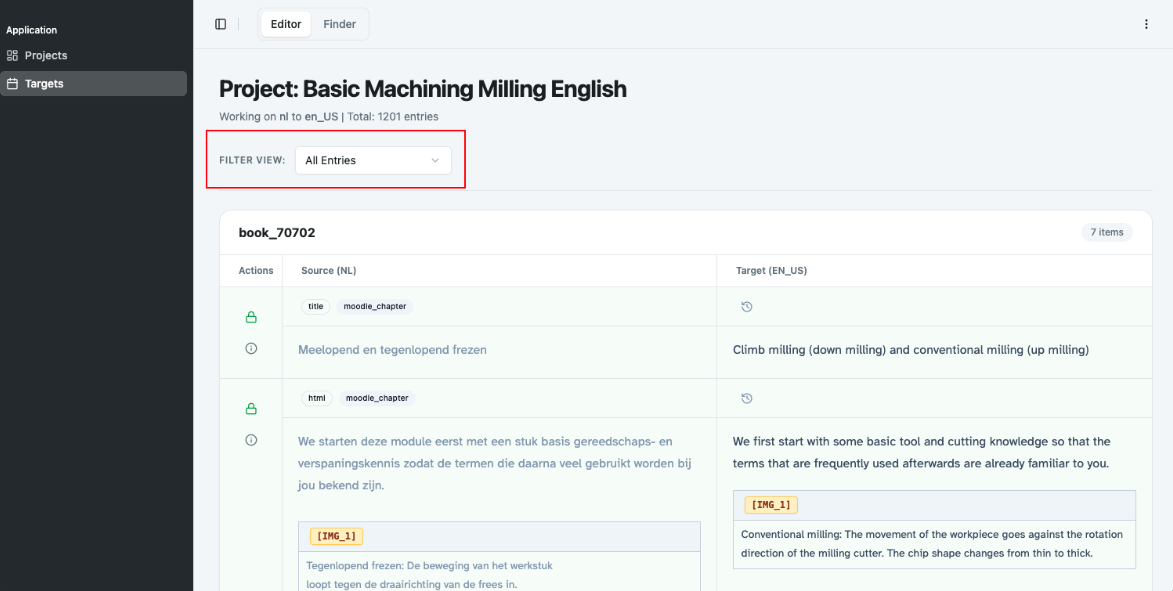
You can also filter to only show approved or unapproved entries for example.
Entry edit history
Above each entry, you may notice a 'revisions' icon.
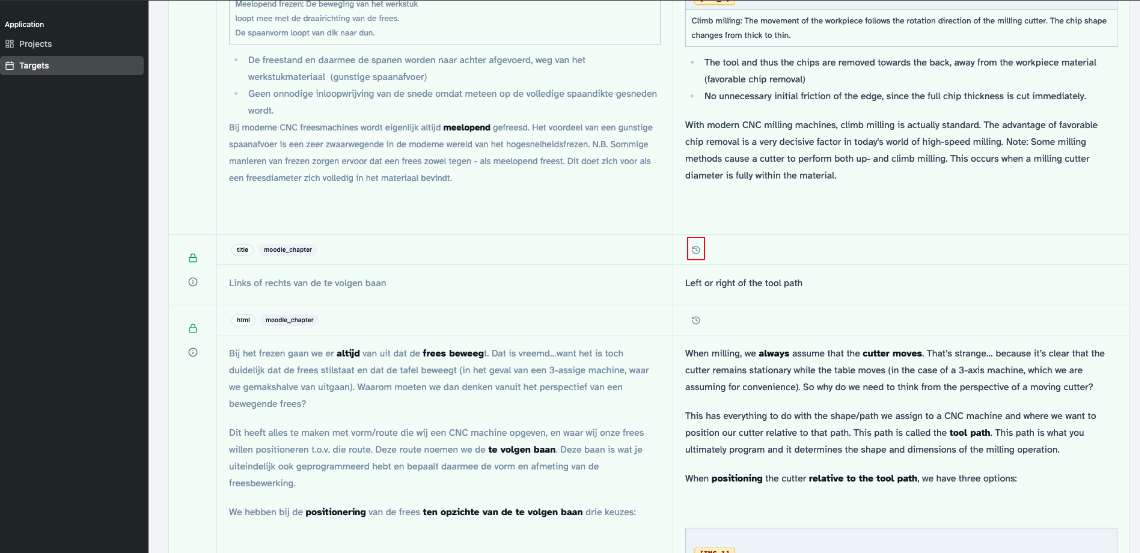
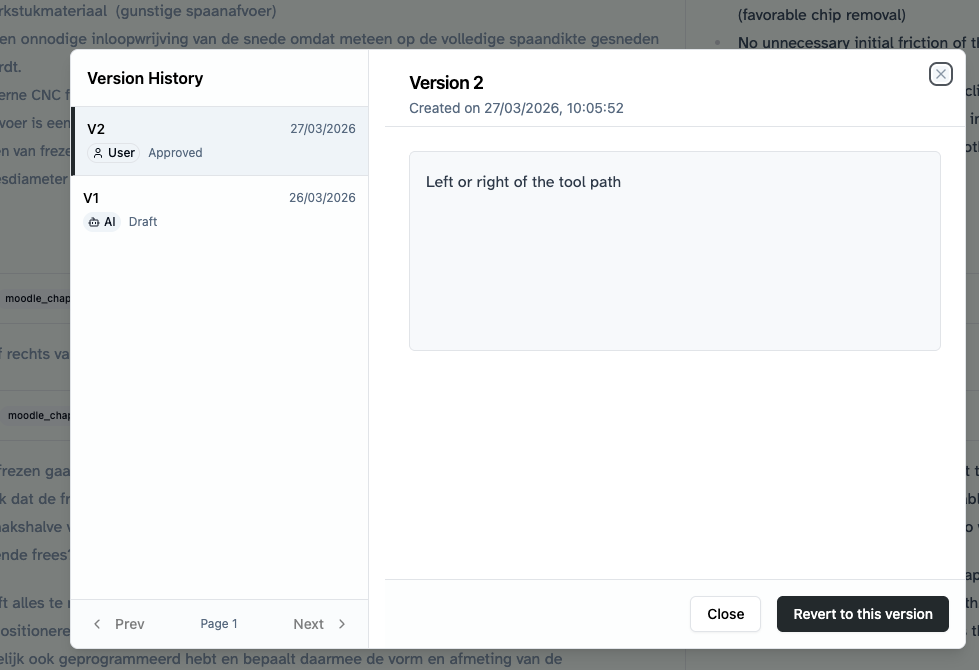
Clicking this opens a popup containing all the edits made to this entry.
You can safely revert to any version or simply look back at all the edits made over time. This screen is subject to change over time and in the near future may provide more information such as the editor's name and a clearer picture of the exact lines that were edited.
Find & Replace
In case you have a word that needs frequent changing, you can use the finder to mass replace words.
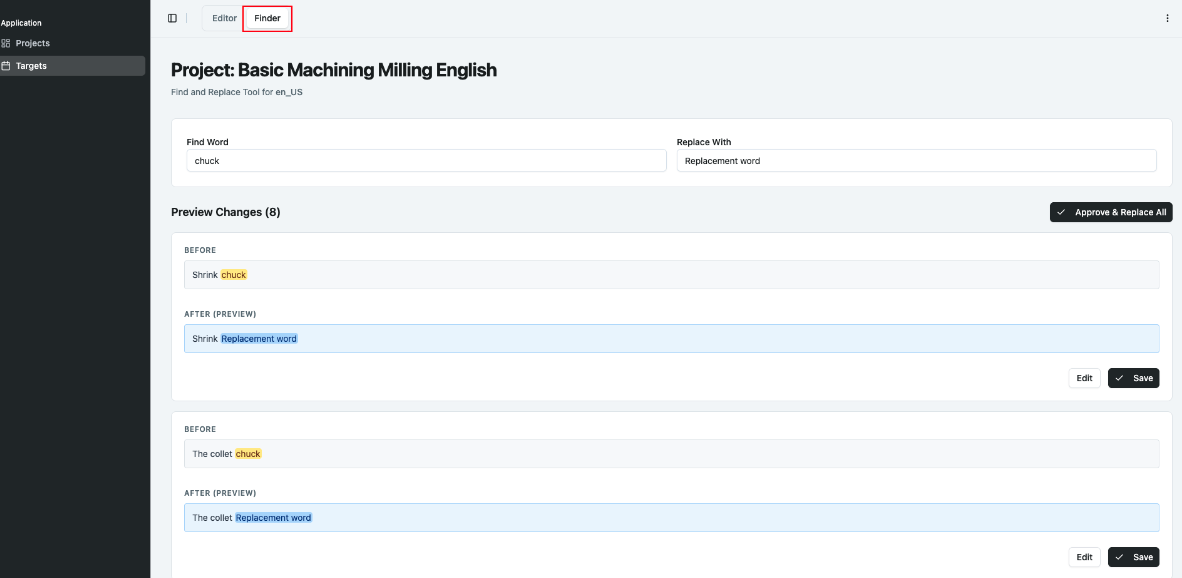
This may not always work correctly when using special characters like ". , | / &"
After replacing words, the entry will appear green because a human edit was made. Do not skip green entries along the way.
Wrapping up
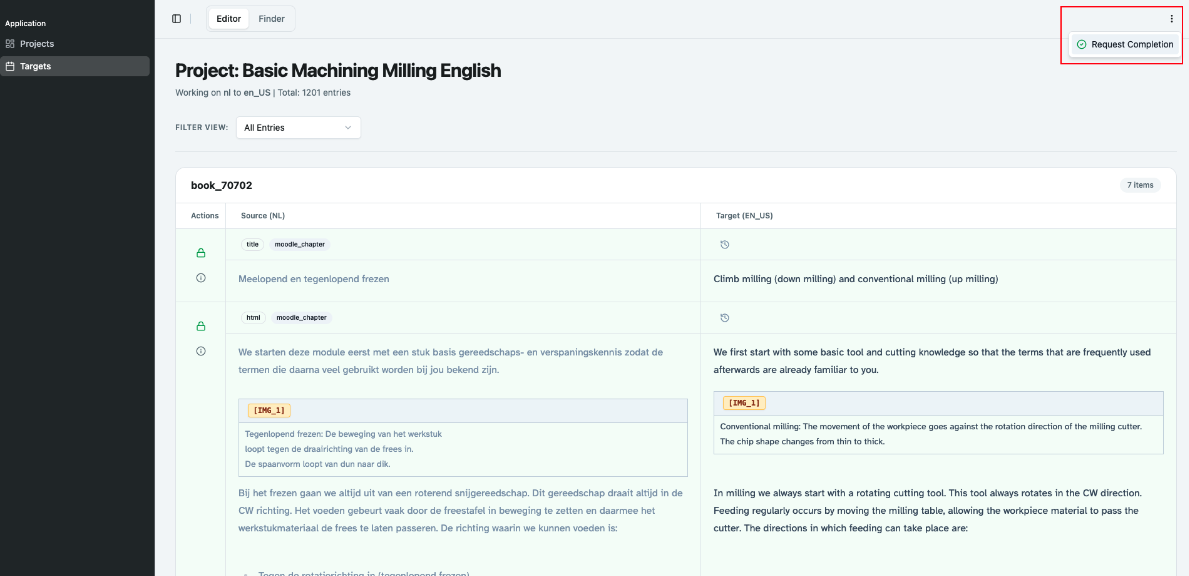
After finishing editorial work you should request completion by clicking the 3 vertical dots top right and pressing request completion. This will notify CRAFT Education staff to proceed. You do not have to leave remarks, this is optional.
No comments to display
No comments to display